
Relinker and splitting passes
The Relinker
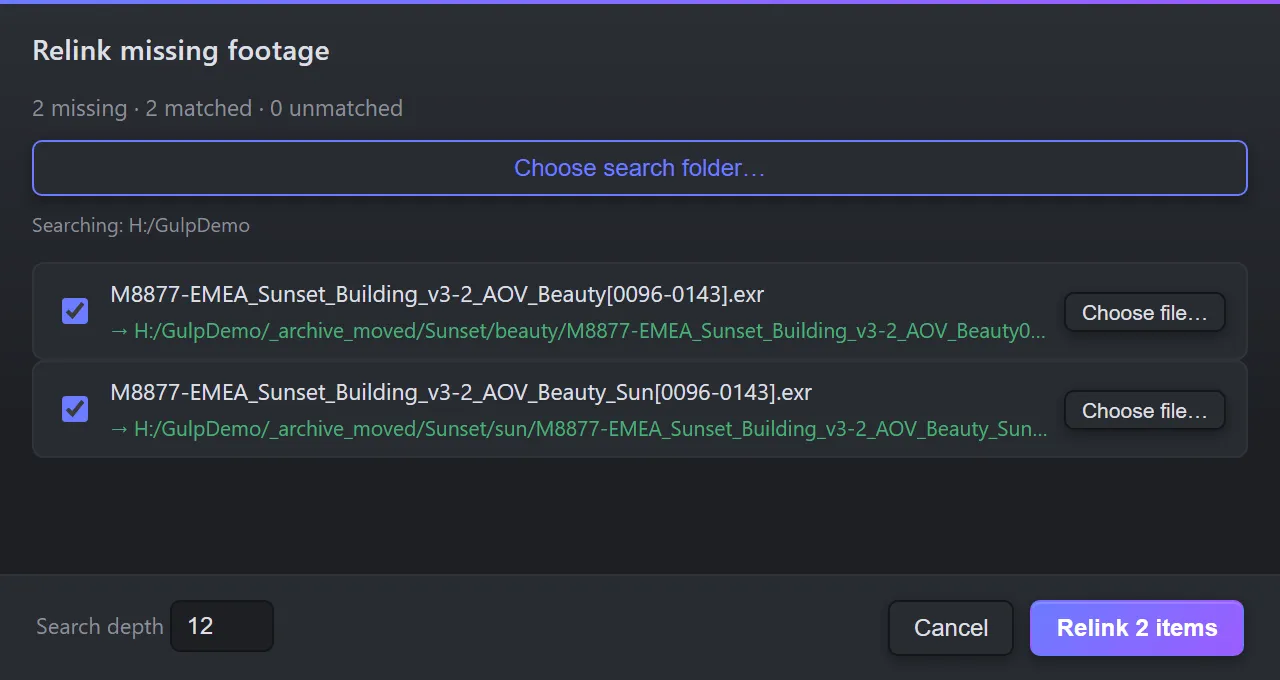
Section titled “The Relinker”When renders move, get re-versioned or arrive on another machine, the project fills with missing footage. The Relinker finds every missing item in the project — not just in the folder you are browsing — and puts them back in one go.
It lights up when something is missing
Section titled “It lights up when something is missing”The Relink missing footage icon sits in the panel’s status row. When the open project has missing footage it lights up with a count, so you notice before the render does. Hover it for the number.

Relinking
Section titled “Relinking”- Click Relink missing footage. The dialog lists every missing item, with a summary such as 12 missing · 0 matched · 12 unmatched.
- Click Choose search folder… and pick the folder the files live in now. Gulp searches everything below it — sequences, stills and movies — and proposes a match for each item.
- Check the matches. Untick any you do not want.
- Press Relink N items. Everything is relinked as a single undo.
Search depth sets how many folder levels below the search folder Gulp looks. On a very large folder the search stops early and says so.
More than one match
Section titled “More than one match”When Gulp finds more than one file that could be the missing one, the row gets a menu instead of a single path. Pick the right one before you relink. Gulp never guesses silently.
A different file name
Section titled “A different file name”When the right file has been renamed — a new version, or a re-export — no search will match it. Click Choose file… on the row and pick the replacement yourself. It can have any name.
Paths that are too long
Section titled “Paths that are too long”On Windows, After Effects cannot open a file whose full path is 260 characters or more. If the
files you relink to are that deep, Gulp says so in the log and suggests mapping a short drive
letter to the search folder with subst, then relinking from that drive. Keep the mapping: the
project remembers the path it was given. Moving the footage to a shorter folder is the permanent
fix. See Troubleshooting.
The Relink tour
Section titled “The Relink tour”The first time you open the Relinker, Gulp offers a short tour. Run it again from Preferences ▸ Help.
Splitting passes to disk
Section titled “Splitting passes to disk”Building a comp splits a multipass EXR inside After Effects, without touching your files. Now and then you want the passes as real files — to hand a single pass to a colourist, or to use it in another application. Gulp can write each pass out as its own EXR sequence.
- Right-click a multipass EXR row and choose Physically split passes to separates on disk….
- Gulp shows how many passes it will write and where: a
<name>_passesfolder beside the original. - Press Split.
The split runs in a progress bar in the panel, so you can carry on browsing while it works.
- It is non-destructive. The original EXR is untouched.
- Colour passes use the compression set in Preferences ▸ General ▸ Split EXR compression (colour passes): DWAB — smallest (lossy) by default, or DWAA, ZIP or PIZ.
- Data passes — depth, normals and so on — are always written lossless (ZIP).
- PuzzleMattes split with the rest.
- Cryptomattes are kept whole: a cryptomatte only works as a set.
When you browse the output folder, the passes read with their real names — Beauty, Backdrop, HDRI, L01 … Sun — rather than generated file names.
If some of the frames are online-only, Gulp tells you how much it has to download first and offers Download and split. The download runs in the panel’s footer and can be cancelled.