
The panel
The panel is a file browser that reads render folders the way you think about them: shots, passes and sequences rather than thousands of loose frames. Open it from Window ▸ Extensions ▸ Gulp.
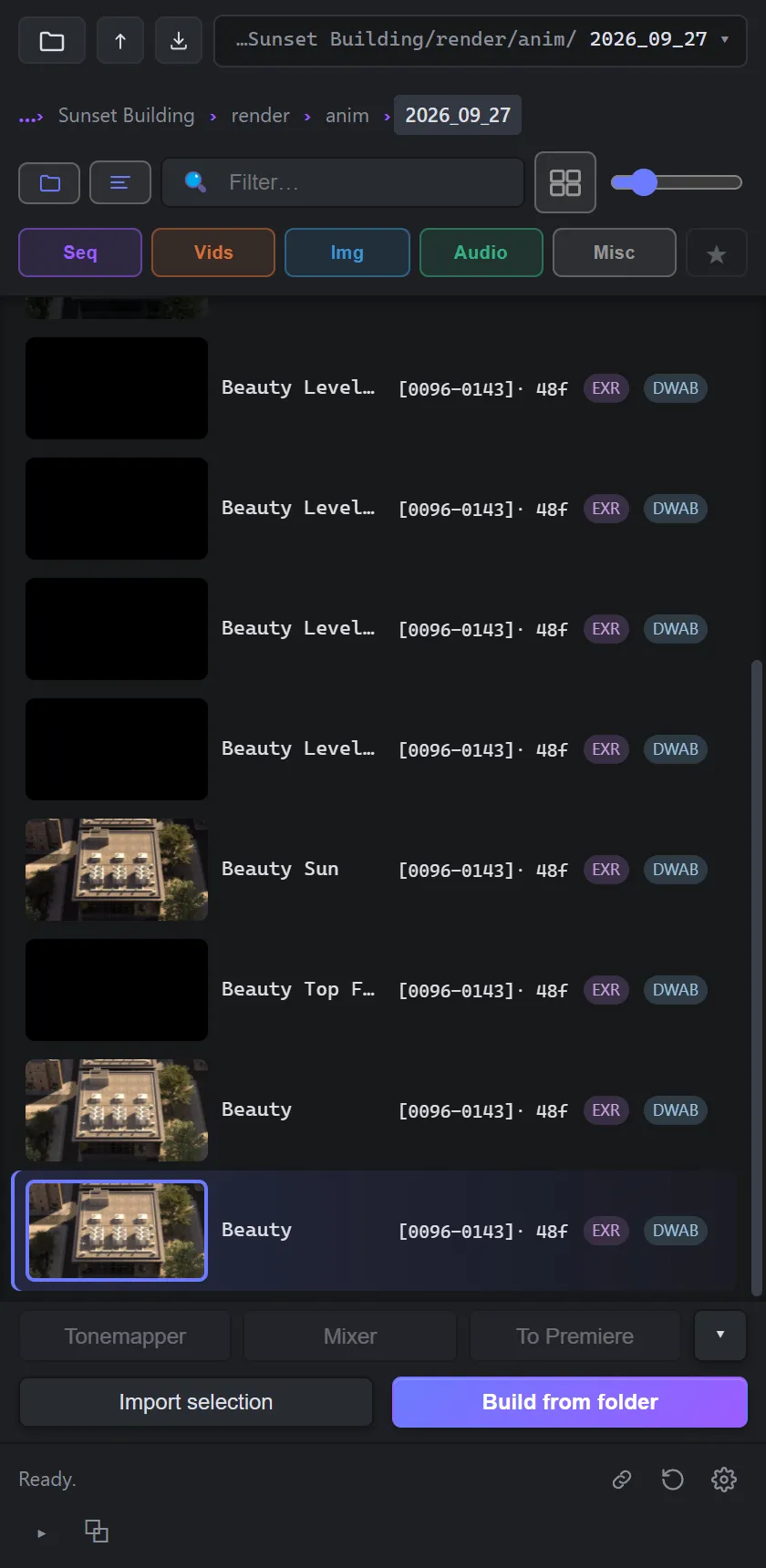
Choosing a folder
Section titled “Choosing a folder”- Click Choose folder and pick the folder your renders are in. Before you have chosen one, you can also double-click the empty list.
- Drop a folder onto the panel to open it.
- Up one level goes to the parent folder.
- Open project panel selection in Gulp: select footage in After Effects’ Project panel, click this, and Gulp browses to the folder it lives in.
Recents
Section titled “Recents”The recents control beside the toolbar keeps your last ten folders. Each reads as its path, with the folder itself highlighted at the end. Click one to go back there.
The path
Section titled “The path”Below the toolbar, the path to the current folder is a row of breadcrumbs. Click any part of it to jump back to that folder. Right-click a part to show it in Explorer or Finder, copy its path, or add it to this project’s favourites.
Back and forward
Section titled “Back and forward”Your mouse’s back and forward buttons, or Alt + ← / →, step through the folders you have visited, as in a web browser.
Favourites
Section titled “Favourites”Right-click any row or folder and choose ☆ Add to project favourites. Favourites belong to
the After Effects project, so save the project first — they are kept in a Gulp folder beside
it. A starred row shows a small star.
Press ★ in the filter bar to see only this project’s favourites, from whichever folders they are in. Click one to open its folder.
Shaping the list
Section titled “Shaping the list”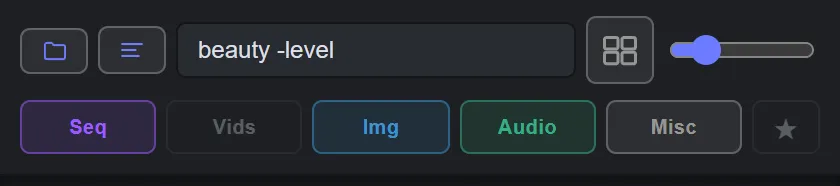
| Control | What it does |
|---|---|
| Show folders | Shows or hides folders in the list. |
| Pass names / file names | Switches each row between its pass name (Beauty, Diffuse…) and its full file name. Hover it to see which you are on. |
| Filter… | Narrows the list as you type. See below. |
| Thumbnails | Shows thumbnails instead of icons. |
| Thumbnail size | The slider beside it sets how big they are. |
| Sequences, Video, Images, Audio, Misc | Show or hide each kind of media. Remembered. |
| ★ | Show only project favourites. |
Filter syntax
Section titled “Filter syntax”The filter matches the name and the extension.
- Spaces mean AND:
beauty exrshows rows that match both words. - A leading minus hides anything that matches:
-cryptohides every cryptomatte. - It waits for you to stop typing. Press Enter to filter straight away.
Rows, shots and passes
Section titled “Rows, shots and passes”Gulp collapses a numbered sequence into one row with its real frame range, for example
[1001-1150] and 150f. A multipass EXR, or a beauty with its AOV sequences beside it,
reads as a shot with its passes.
Each row carries chips with what Gulp read from the file’s header, never by decoding it:
- multipass with a pass count. Hover it for the list of passes.
- The pass’s role — beauty, an AOV name, or beauty? when Gulp cannot tell.
- EXR, the compression, the bit depth and colourspace, and @25 fps when the file carries a frame rate.
- Cryptomatte on a cryptomatte pass.
- On a movie: the codec — H.264, H.265, DNxHR, MPEG-2, or the ProRes flavour (Proxy, LT, 422, HQ, 4444, 4444 XQ) — and its frame rate and duration. A small speaker on the thumbnail means the clip has sound.
When the panel is narrow, chips fade out one at a time from the right before the name is ever shortened.
Missing frames
Section titled “Missing frames”A sequence with gaps shows ⚠ N missing, and a bar behind its name shows how much of the
range is there. Hover the ⚠ to see which frames are missing, listed as ranges such as
1166-1167 — the form you type into a render queue. The bar updates while the shot is still
rendering.
Online-only files
Section titled “Online-only files”Files in Dropbox, OneDrive or iCloud that are only placeholders on this machine show an online-only badge. Gulp reads what it can without downloading anything, and never makes thumbnails from a placeholder.
To fetch the footage, click the badge, or right-click the row and choose Download N online-only frames (size)… — the menu item states the size first. Downloads run in a bar at the foot of the panel, with Cancel download, and you can carry on browsing while they run.
Thumbnails
Section titled “Thumbnails”Thumbnails are off until you turn them on. They cover stills, image sequences, movies, Photoshop and Illustrator files, and they are kept on disk so a folder you return to shows them at once.
Hover-scrub: rest the pointer on a thumbnail and it loads its frames (you will see a shimmer), then move across it to scrub through the shot.
The size slider is instant; nothing is regenerated when you change it. The cache’s size limit lives in Preferences ▸ Browser.
Subfolders and cherry-picking
Section titled “Subfolders and cherry-picking”Gulp also lists what is in subfolders, two levels down by default, under a header for each folder. That lets you pick passes from neighbouring folders and build them into one comp: Ctrl-click files or sequences under different headers and press Build.
Set how deep it looks, and how the results are laid out, in Preferences ▸ Browser ▸ Search subfolders. 0 turns it off.
Selecting
Section titled “Selecting”| Do this | To |
|---|---|
| Click | Select a row |
| Ctrl + click | Add a row to the selection, or take it out |
| Shift + click | Select everything between the last row you clicked and this one |
| Press and drag down the list | Paint a selection |
| Ctrl + A | Select every row |
| ↑ / ↓, Shift + ↑ / ↓ | Move or extend the selection |
On macOS, read Ctrl as ⌘ Cmd.
Drag into After Effects (Windows)
Section titled “Drag into After Effects (Windows)”Drag a row onto the timeline, into a comp or into the Project panel and it imports there. Drag a thumbnail to go at once; drag any other part of a row once it is selected; or paint a selection and carry on out of the list to drag all of it. Sequences come in as sequences. Dragging is not yet available on macOS.
The right-click menu
Section titled “The right-click menu”Right-click a row for everything you can do to it. What appears depends on the file.
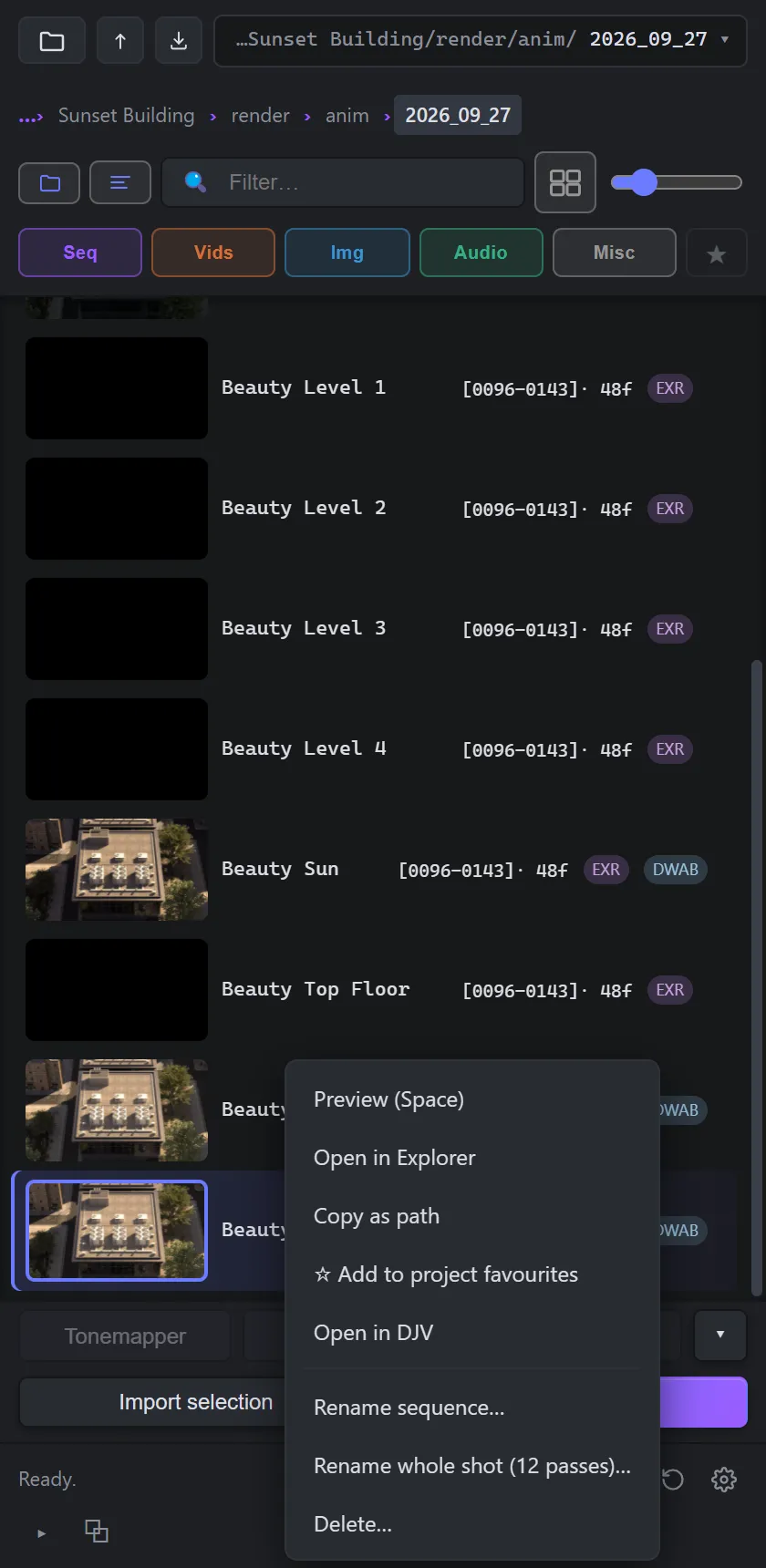
| Item | What it does |
|---|---|
| Preview (Space) | Opens Quick Look. Use this when Space goes to After Effects instead. |
| Open in Explorer / Open in Finder | Shows the file in your file manager. |
| Copy as path | Copies the full path, without quotes. |
| ☆ Add to project favourites | Stars the row for this project. |
| Open in DJV | Opens the file in DJV, when DJV is installed. See Preferences ▸ DJV. |
| Physically split passes to separates on disk… | Writes each pass of a multipass EXR as its own sequence (full version). See Splitting passes. |
| Download N online-only frames (size)… | Fetches an online-only sequence or file, with its size in the label. |
| Inspect passes — downloads one frame… | Reads the passes of an online-only sequence by fetching a single frame. |
| Build comp (layers + precomps), Build comp (layers only, no precomps) | On a Photoshop document. See Photoshop and Illustrator. |
| Import one layer, Import all N artboards to comps, Import one artboard | On Photoshop, Illustrator and PDF files. |
| Set AOV type | Tells Gulp what a pass is when it cannot work it out — Beauty, a named AOV, or Custom…. — Clear, let Gulp decide undoes it. |
| Rename… / Rename sequence… / Rename whole shot (N passes)… | Renames a file, a sequence (frame numbers, padding and extension are kept) or every pass of a shot. |
| Delete… / Move to Trash… | Sends the files to the Recycle Bin or Trash. |
Rename previews the new names, refuses a name that clashes before touching anything, and puts everything back if a rename fails partway. It can also relink the project’s footage to the new names.
Delete never deletes permanently. It acts on the whole selection, shows the frame count and size before you confirm, and warns when the open project uses the files.
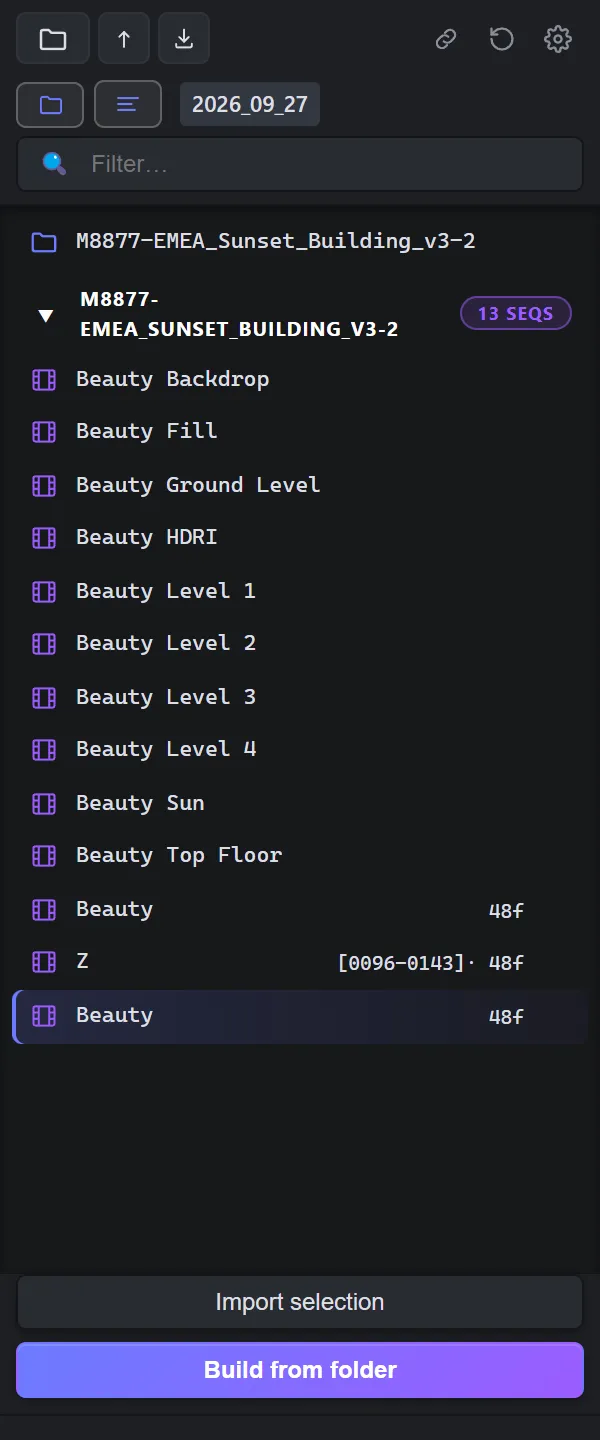
Super-mini mode
Section titled “Super-mini mode”Dock Gulp as a narrow column — under 340 px wide — and it keeps only what fits: choose folder, up, open project panel selection, relink, refresh and Preferences on one row; the folder and name toggles with the current folder’s name on the next; the filter box; and Import over Build. Media filters, recents, thumbnails and the comp tools step aside. Filters you have set keep filtering, and thumbnails come back when the panel widens.
The status row and log
Section titled “The status row and log”The bottom of the panel shows what Gulp last did. On the right are Relink missing footage (it lights up with a count when the project has missing footage), Refresh (re-scans the folder, and resets the panel if it is stuck) and Preferences. Show log opens the full log; Copy log copies it, which is the most useful thing to send with a support request.
A very large folder lists without freezing the panel, with a running count and a Cancel button. A folder of more than 40,000 files asks first: List anyway reads every header, Names only lists straight away and reads headers later, just for what you use.