Quick Look
Quick Look is a full-size preview window for whatever row you have selected. It is for checking you have the right shot before you bring it in, without importing anything.
Opening and closing
Section titled “Opening and closing”Select a row and press Space. The window opens in the middle of the screen and starts playing straight away. Press Space on a still, or Esc at any time, to close it.
What it opens
Section titled “What it opens”- Movies, with sound — including ProRes, DNxHD and other formats the panel decodes itself.
- Image sequences — EXR, PNG, JPG, TIFF, DPX, TGA. Missing frames hold on the previous picture, as After Effects shows them.
- Stills, including multipass EXRs.
- Photoshop, Illustrator and PDF files. Pages and artboards step like frames.
Walking the list
Section titled “Walking the list”While Quick Look is open, ↑ / ↓ show the previous or next row from the panel, so you can run down a folder without closing the window. The View and Pass you chose come with you.
Playing
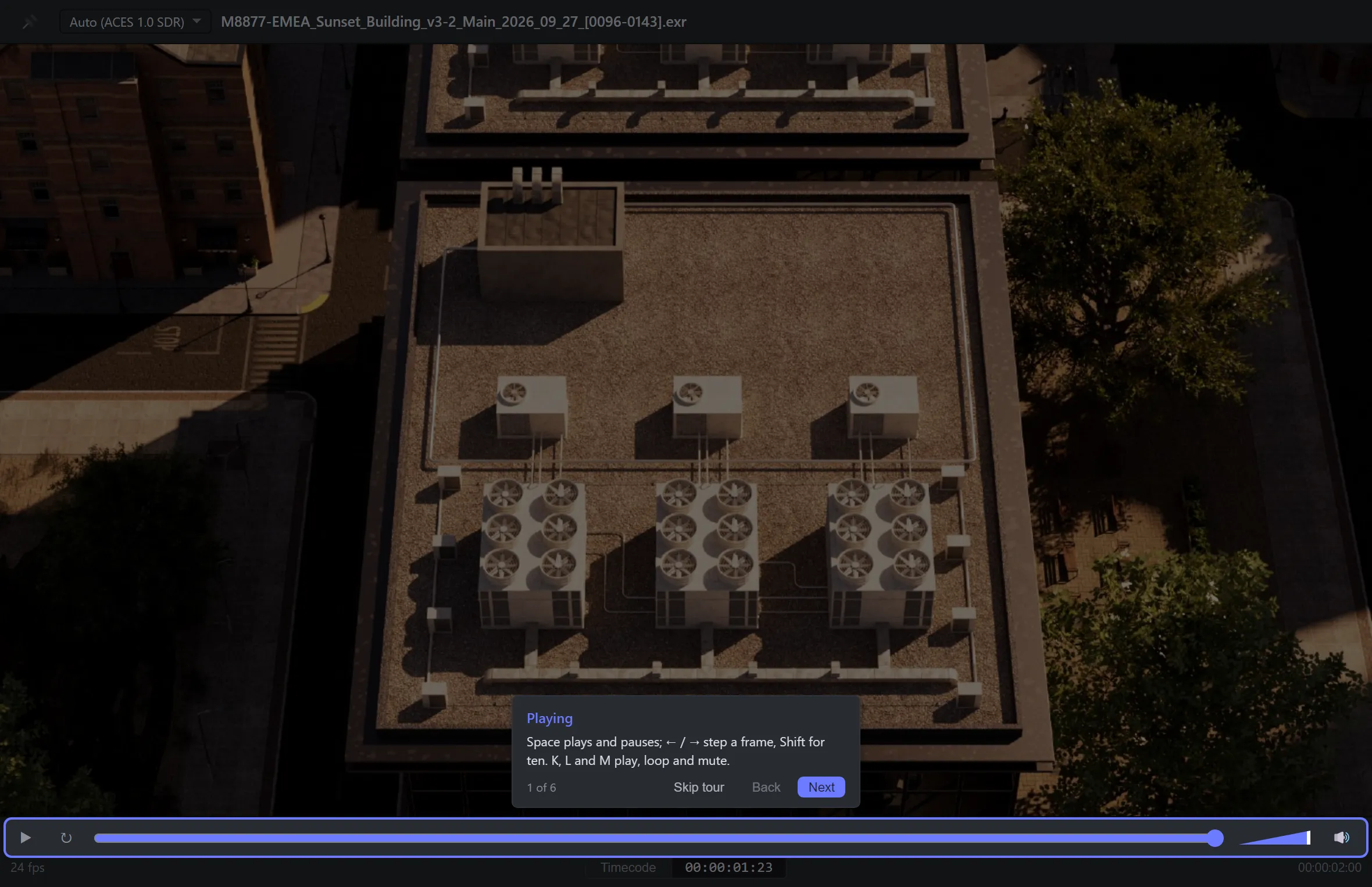
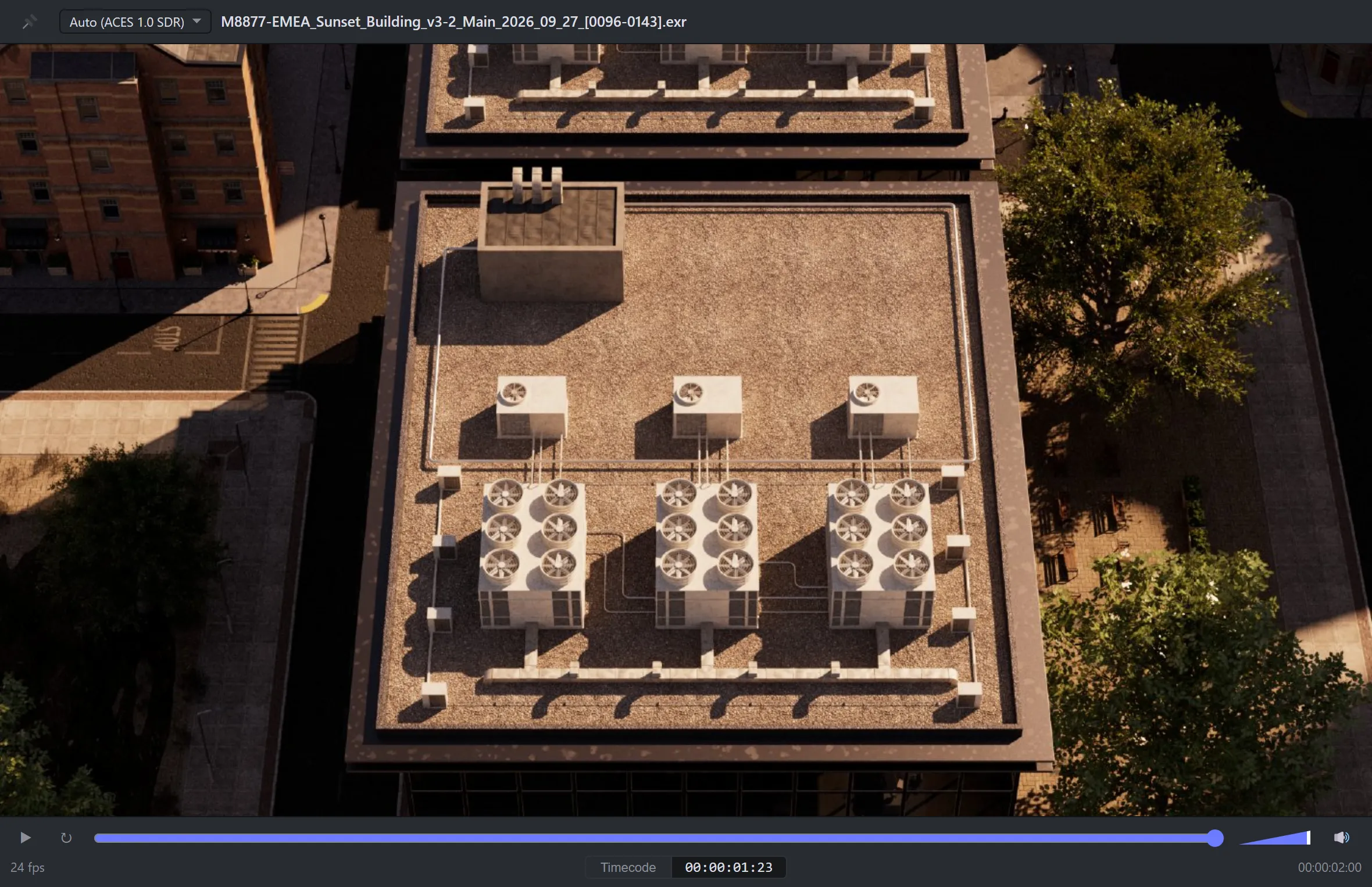
Section titled “Playing”| Control | What it does |
|---|---|
| ▶ | Play / pause (Space or K) |
| ↻ | Loop on / off (L) |
| Timeline | Drag to scrub |
| Volume and 🔊 | Volume and mute (M). Both are remembered. |
| ← / → | Step one frame. Shift steps ten. |
The time field
Section titled “The time field”The time under the timeline is a field you can type into.
- Drag across it to scrub (Shift for faster).
- Click it, type a timecode or frame number, and press Enter to go there.
- ↑ / ↓ nudge it by one frame, Shift + ↑ / ↓ by ten. Esc abandons the edit.
The button beside it switches between Timecode, frames and standard time, and remembers
your choice. Frames mode shows the number on disk, so a sequence starting at 1001 reads 1001.
Drop-frame timecode is marked with ; so you can see which kind you are reading.
For EXRs, high-bit stills and video, a View menu appears at the top of the window. Gulp guesses the right view and shows Auto with what it picked; choose another and it is remembered.
| Footage | Views offered |
|---|---|
| Colour EXRs and 32-bit float stills | ACES 1.0 SDR, ACES 2.0 SDR, sRGB, Raw |
| Video and 16-bit stills | sRGB (as encoded), Rec.709 (γ2.4), Log (ACEScct) → ACES 1.0, Log (ACEScct) → ACES 2.0 |
For video, Auto picks Rec.709 when the file is tagged BT.709 and says why. Ordinary 8-bit stills have no View menu: they are shown as they are.
On a multipass EXR, a Pass menu appears beside View. Pick which pass to look at. It sticks by name as you move between shots, so you can check the same pass across a whole folder with ↑ / ↓.
Pages and artboards
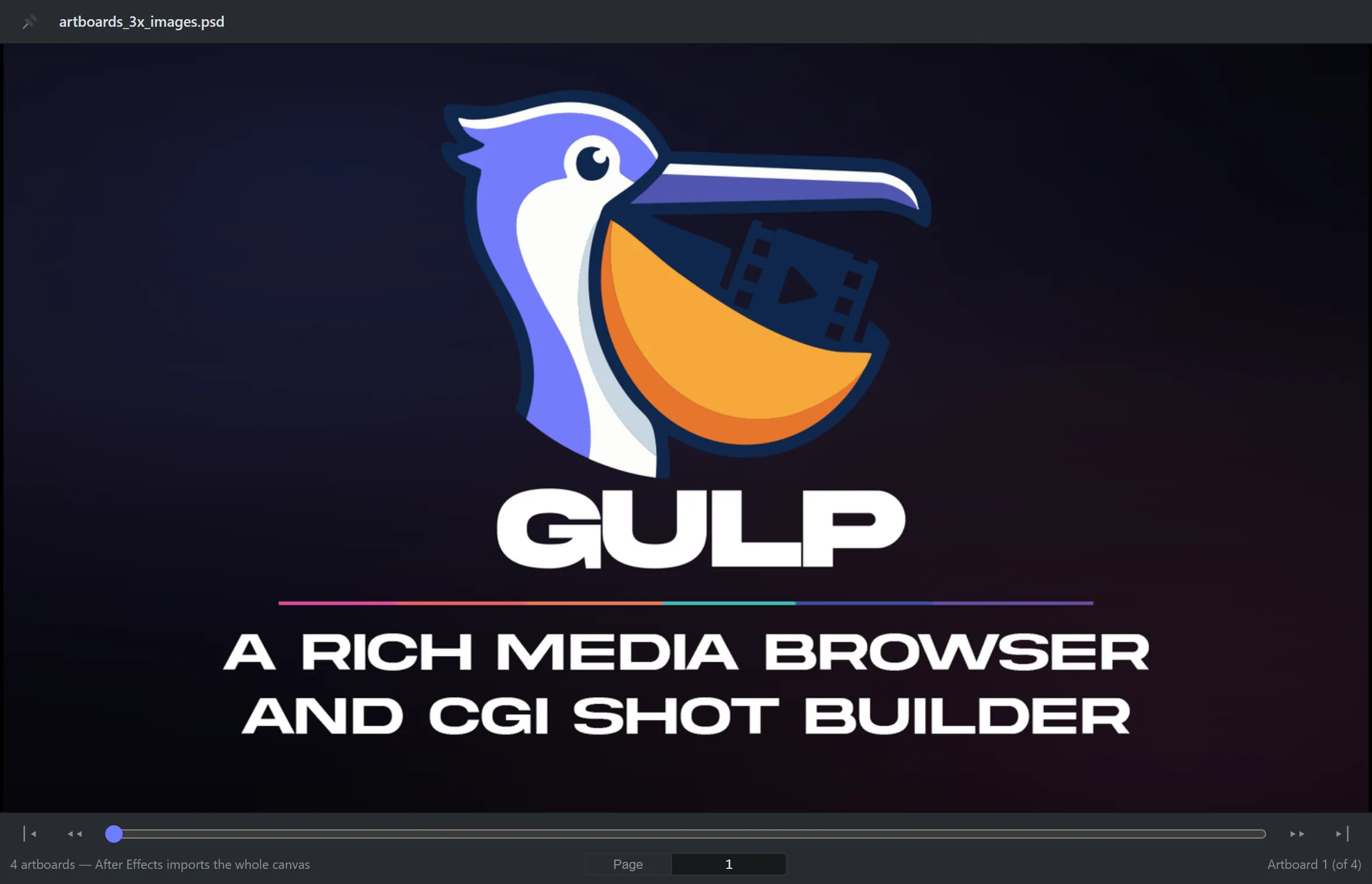
Section titled “Pages and artboards”On a PDF, or an Illustrator or Photoshop file with artboards, the play controls are replaced by page controls:
| Control | What it does |
|---|---|
| |◂ / ▸| | First page / last page |
| ◂◂ / ▸▸ | Back / forward ten pages (Shift + ← / →) |
| ← / → | One page |
Each artboard shows its name. Type a page number into the time field to jump to it.
Pinning
Section titled “Pinning”Unpinned, Quick Look closes when you click back into the panel. Click 📌 at the top left to pin it, and it stays open while you work. A pinned Quick Look never blocks the Build or Import dialogs.
The Quick Look tour
Section titled “The Quick Look tour”The first time you open Quick Look, Gulp offers a short tour of these controls. Run it again from Preferences ▸ Help. All the keys are on Keyboard shortcuts.