
Getting started
What you need
Section titled “What you need”- After Effects 2024 or later (24.0 and up), on Windows or macOS.
- macOS 12 or later, Apple Silicon or Intel. Everything is signed and notarised, so there is nothing to unblock.
- Windows 10 or 11, 64-bit Intel/AMD.
Install
Section titled “Install”The easiest way is the aescripts + aeplugins manager. It installs both halves of Gulp, handles your licence or trial, and keeps it up to date. If you use it, skip to Open the panel.
Installing by hand
Section titled “Installing by hand”Gulp comes in two halves that only work as a matched pair. Install both from the same download, and replace both when you update.
-
The panel. Drag
Gulp.zxponto the ZXP/UXP Installer. -
The plug-ins. Quit After Effects, then drag the whole
Gulpfolder from the download into After Effects’ MediaCore plug-ins folder:Platform Drag this folder… …into this folder Windows plugin/win/Gulp/C:\Program Files\Adobe\Common\Plug-ins\7.0\MediaCore\macOS plugin/mac/Gulp//Library/Application Support/Adobe/Common/Plug-ins/7.0/MediaCore/The folder holds the comp builder, Gulp Tonemap and the Gulp Light Mixer. The trial download holds the comp builder only.
Open the panel
Section titled “Open the panel”Start After Effects and choose Window ▸ Extensions ▸ Gulp. Dock it wherever suits you — a narrow column works: below 340 px wide the panel switches to a compact layout that keeps only what you need to browse and build.
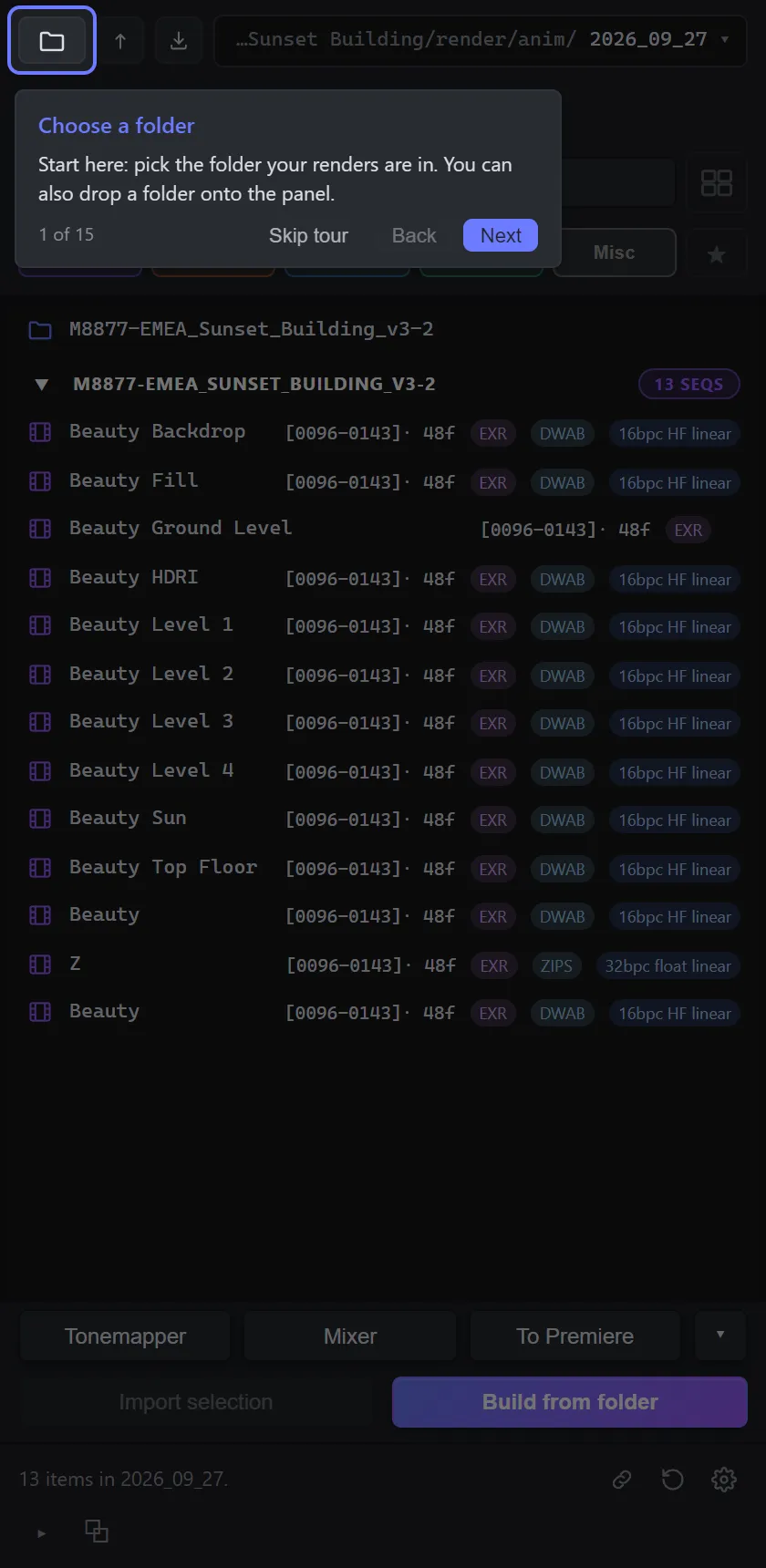
The first time it opens, Gulp offers a short tour. Take it: it is the quickest way to find the features that are not on a button.
Licence and trial
Section titled “Licence and trial”Buying through aescripts, your licence is managed by the aescripts + aeplugins manager. To try Gulp first, choose Add Trial from the manager’s Account menu and install the trial.
The trial is the full panel with a metered allowance: 5 comp builds and 5 imports. Browsing, Quick Look, thumbnails and relinking are not counted. The trial leaves out the full-version tools — Gulp Tonemap, the Light Mixer, Send to Premiere, render watching, splitting passes to disk, building from several folders and editable Photoshop and Illustrator text. Wherever one would appear, the trial shows a FULL VERSION badge instead.
Your first comp
Section titled “Your first comp”- Click Choose folder — or double-click the empty list — and pick a folder of renders.
- Gulp lists what it finds as shots: a multipass EXR, or a beauty with its AOV sequences, shows as one row with its passes underneath.
- Select a shot and press Space for Quick Look, to check it is the one you want.
- Press Build from folder (with passes selected it reads Build from N passes). The Build dialog suggests settings from the footage itself; accept them and Gulp builds the comp with every pass on its own named layer. Only the beauty is visible — switch on any pass when you need it, already blended correctly.
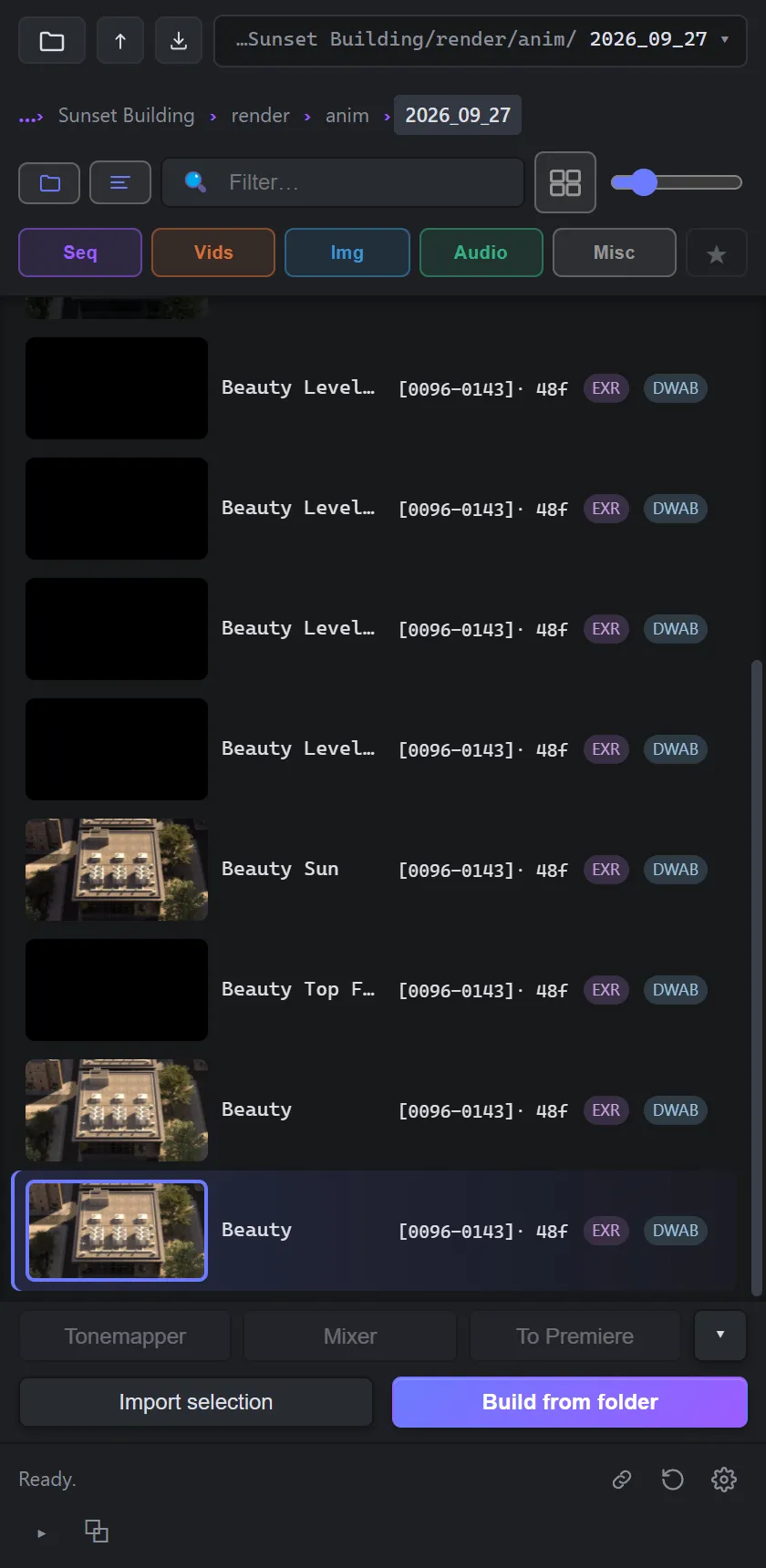
Just want the footage in the project, no comp? Press Import selection instead.
Something not right?
Section titled “Something not right?”- Gulp is missing from Window ▸ Extensions, or comps build without their passes split. Quit After Effects completely and reopen it. A new install only takes effect on the next launch. If passes still do not split, the plug-ins half is not installed.
- Build and Import are greyed out. The panel and the plug-ins come from different downloads. Reinstall both from the same one.
- An imported file shows colour bars. After Effects cannot open a file whose full path is longer than 260 characters on Windows. Gulp warns about these; move the footage to a shorter path.