
Colour settings
Getting colour right in After Effects depends on two things Gulp cannot see for itself: what colourspace you rendered to, and settings After Effects does not let a script change. So Gulp asks, compares, and tells you exactly what to set.
Opening the colour settings
Section titled “Opening the colour settings”In the Build or Import dialog, press ⚙ After Effects project colour settings…. The dialog switches to Project colour settings; Apply or Cancel takes you back.
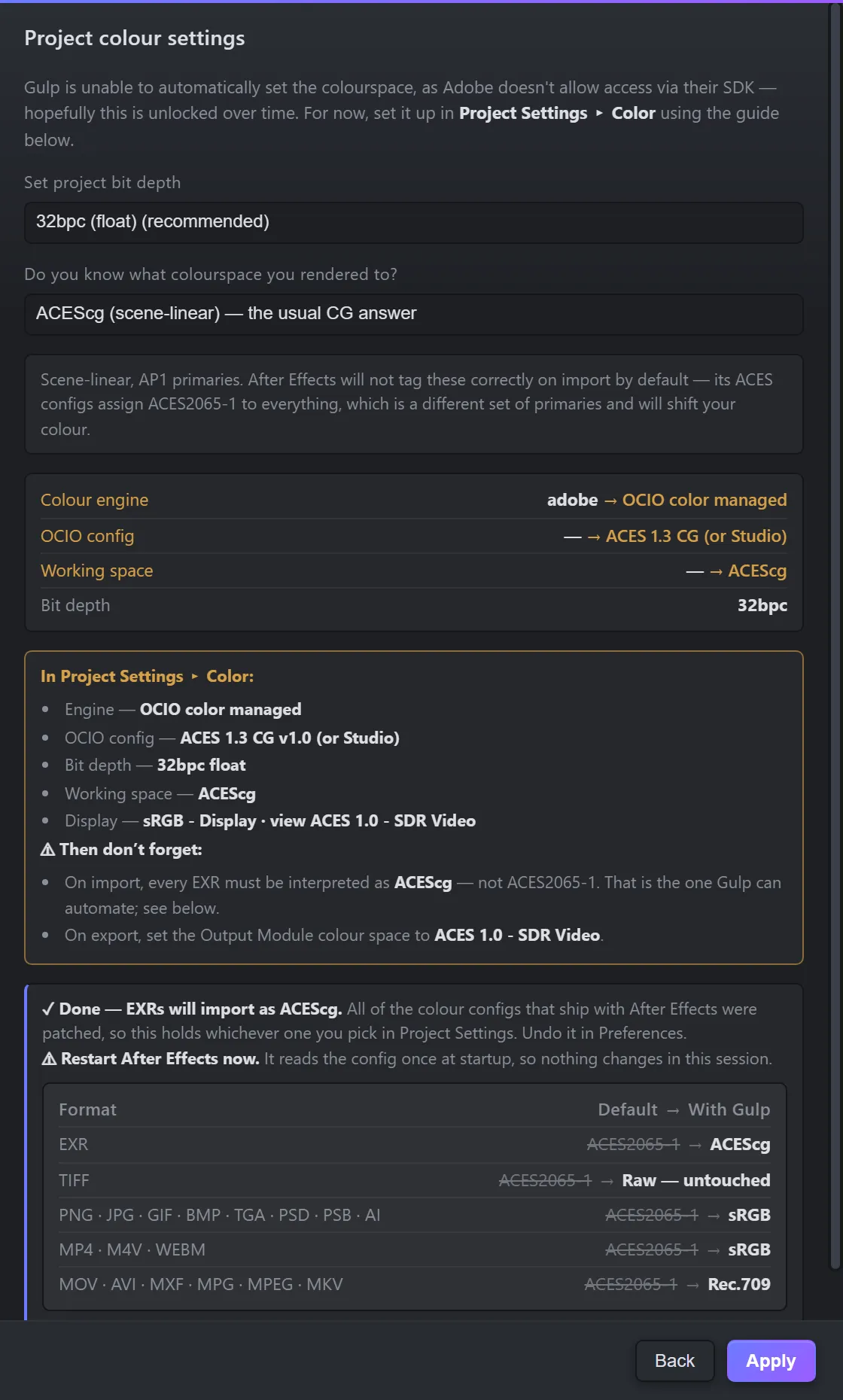
What did you render to?
Section titled “What did you render to?”Do you know what colourspace you rendered to? drives everything else in the window. Gulp cannot detect this: an EXR carries its primaries at best and never its transfer function, and most renderers write neither. Pick the answer that matches your render:
| Answer | What Gulp says |
|---|---|
| ACEScg (scene-linear) — the usual CG answer | Use OCIO with an ACES config, and make sure EXRs import as ACEScg rather than ACES2065-1. Gulp can set that up for you (below). |
| ACES2065-1 (scene-linear, AP0) — interchange | Nothing to change: Adobe’s ACES configs already read every import as ACES2065-1. |
| Rec.709 / sRGB primaries, scene-linear | Interpret the footage as Linear Rec.709 (sRGB) in Interpret Footage. |
| The view transform is baked in (display-referred) | The render is already a picture. ACES is not needed: use Adobe colour management with Linearize Working Space off. |
| I’m not sure | How to find out: look for values above 1.0 in a beauty frame, or check your renderer’s output settings. |
Your project, setting by setting
Section titled “Your project, setting by setting”Under the guidance, Gulp lists your project’s current Colour engine, OCIO config, Working space, Working gamma and Bit depth against what your answer needs, and marks each one that differs. Change those in After Effects’ Project Settings ▸ Color — Adobe does not let a script set them.
Bit depth
Section titled “Bit depth”Set project bit depth is the one setting Gulp can change for you: 8bpc, 16bpc or 32bpc (float). It arrives holding Gulp’s recommendation for the footage. Press Apply to set it now; when you build, the value is applied too.
The 32 bpc warning
Section titled “The 32 bpc warning”Scene-linear EXRs are floating point. In an 8 or 16 bpc project, everything above 1.0 is clipped — and After Effects’ 16 bpc is integer, not half float. When you build float footage into a project below 32 bpc, the Build dialog warns you and points at this setting.
Making EXRs import as ACEScg
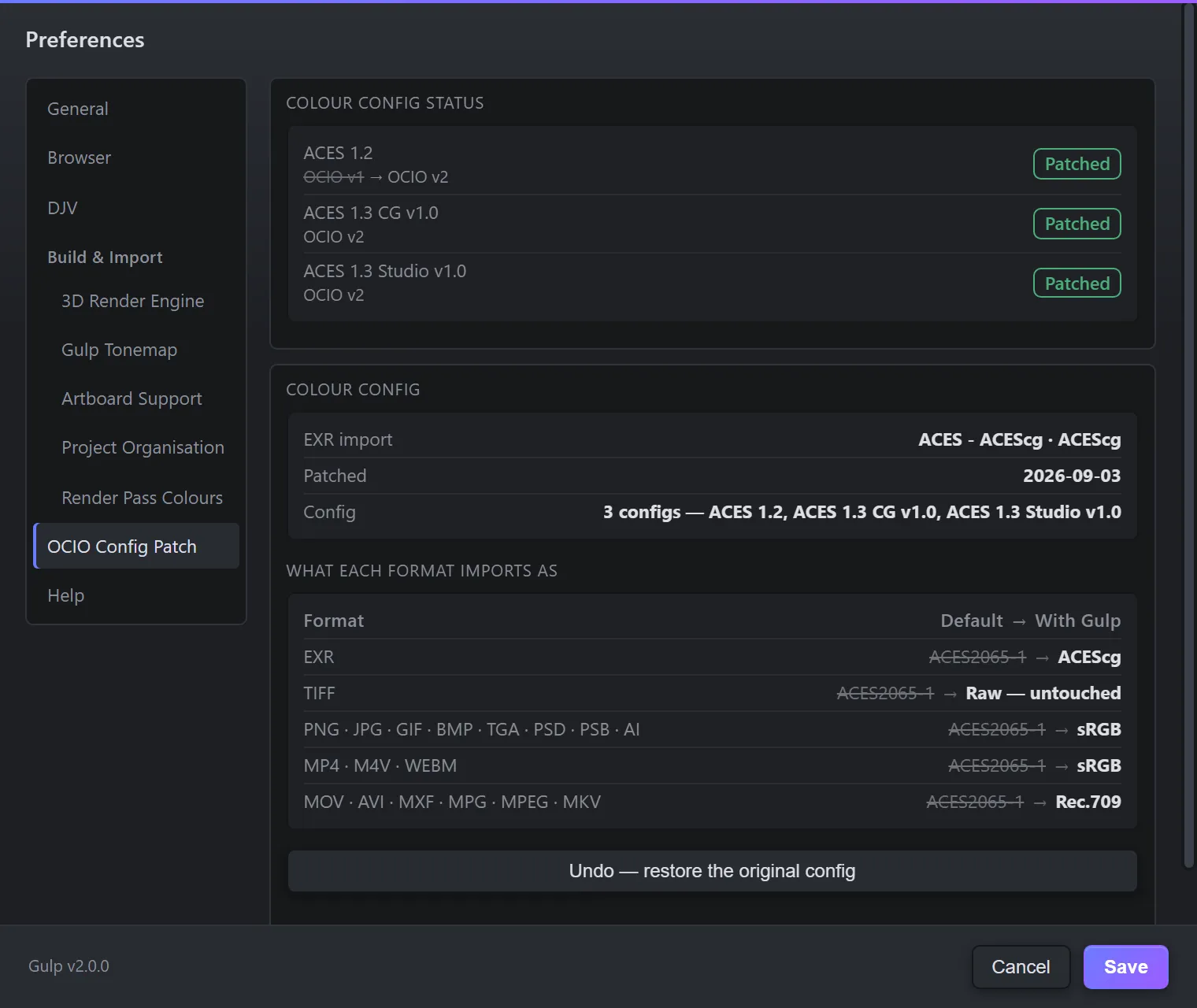
Section titled “Making EXRs import as ACEScg”After Effects’ own ACES configs read every file as ACES2065-1 by default. Renders made in ACEScg — the usual case — then shift colour on import. Gulp can patch Adobe’s configs so each format comes in as what it really is:
| Format | Default | With Gulp |
|---|---|---|
| EXR | ACES2065-1 | ACEScg |
| TIFF | ACES2065-1 | Raw — untouched |
| PNG · JPG · GIF · BMP · TGA · PSD · PSB · AI | ACES2065-1 | sRGB |
| MP4 · M4V · WEBM | ACES2065-1 | sRGB |
| MOV · AVI · MXF · MPG · MPEG · MKV | ACES2065-1 | Rec.709 |
Press Set EXRs to import as ACEScg — in the colour settings when you answer ACEScg, or in Preferences ▸ OCIO Config Patch. Gulp patches all of Adobe’s configs at once, so switching config in Project Settings does not quietly undo it. Restart After Effects for the change to take effect.
Only Adobe’s configs are patched. A Cinema 4D or studio config belongs to another application, and editing it would change how that application reads colour. If your project uses one, Gulp says so.
Undoing the patch
Section titled “Undoing the patch”Gulp keeps a backup of every config it patches. Preferences ▸ OCIO Config Patch shows whether each config is patched or original; Undo — restore the original config puts Adobe’s files back exactly as they shipped. Restart After Effects afterwards.
Checking renders are scene-linear
Section titled “Checking renders are scene-linear”When the Build dialog opens, Gulp can read up to five beauty frames looking for values above 1.0 — proof the render is scene-linear and still needs a view transform. It then advises on Gulp Tonemap in the dialog. For Redshift renders with a separate Beauty AOV, it says which of the two has the view baked in, with the brightest value of each.
On slow or network storage this can take a while. Switch it off in Preferences ▸ 3D Render Engine ▸ Check renders for scene-linear values when the Build dialog opens.
Footage colourspace
Section titled “Footage colourspace”The Build dialog shows the colourspace After Effects will assign each file on import. That is After Effects’ decision and scripts cannot change it. If it is wrong for a clip, fix it in Interpret Footage.