
Preferences
Click Preferences at the right of the panel’s status row. Preferences opens in its own window, with categories down the left. Changes take effect when you press Save; Cancel leaves everything as it was. A theme previews live while you choose.
The Gulp version you are running is shown at the bottom of the window.
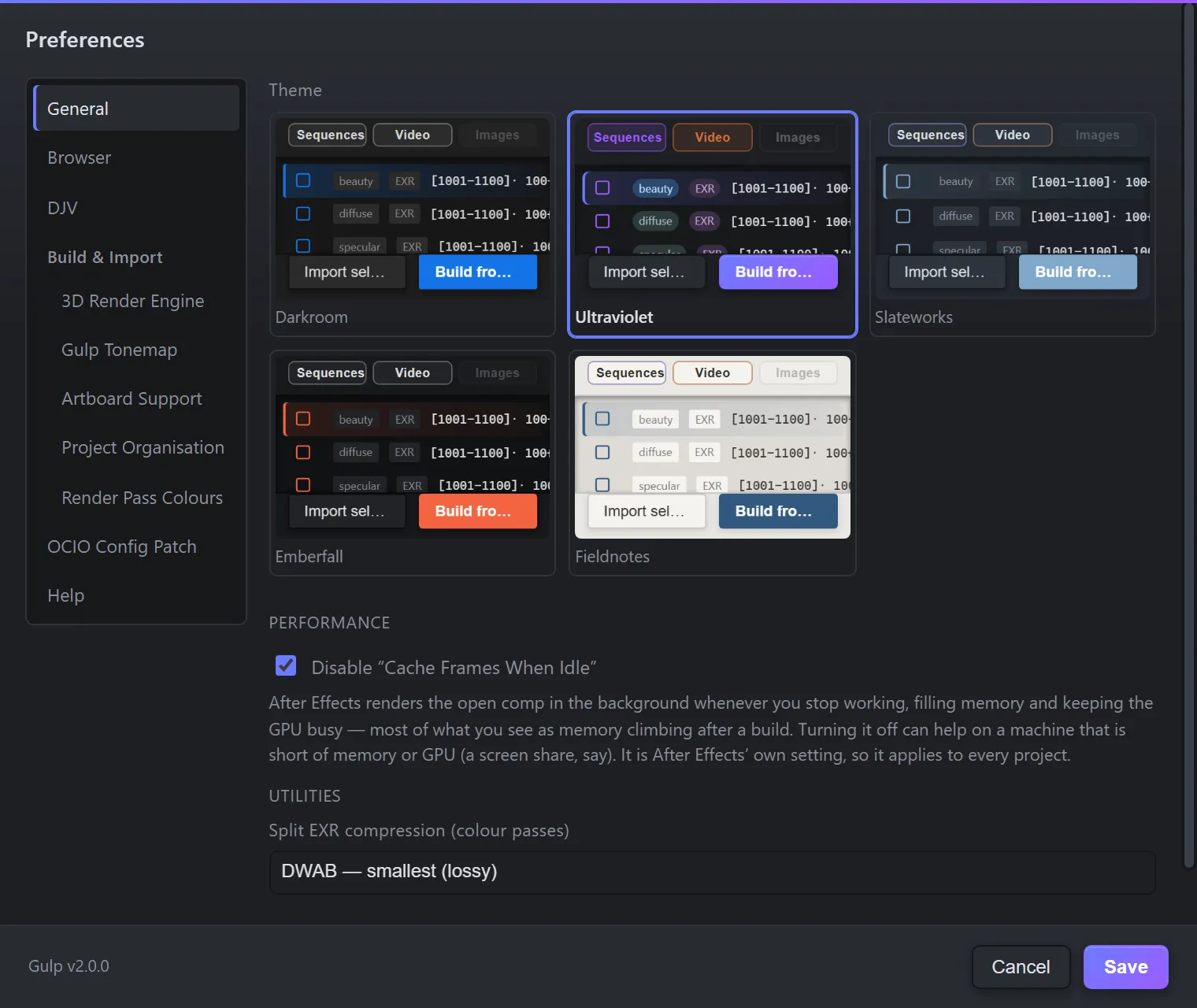
General
Section titled “General”| Option | What it does |
|---|---|
| Theme | Five themes, shown as tiles of the real panel: Darkroom (the default, matching After Effects), Ultraviolet, Slateworks, Emberfall and Fieldnotes (light). Click one to pick it. |
| Disable “Cache Frames When Idle” | After Effects renders the open comp in the background whenever you stop working, filling memory and keeping the GPU busy. Turning this off can help on a machine short of memory or GPU. It is After Effects’ own setting, so it applies to every project. |
| Split EXR compression (colour passes) | The compression used when you split passes to disk: DWAB — smallest (lossy), DWAA — small (lossy), ZIP — lossless or PIZ — lossless. Full version. |
Browser
Section titled “Browser”| Option | What it does |
|---|---|
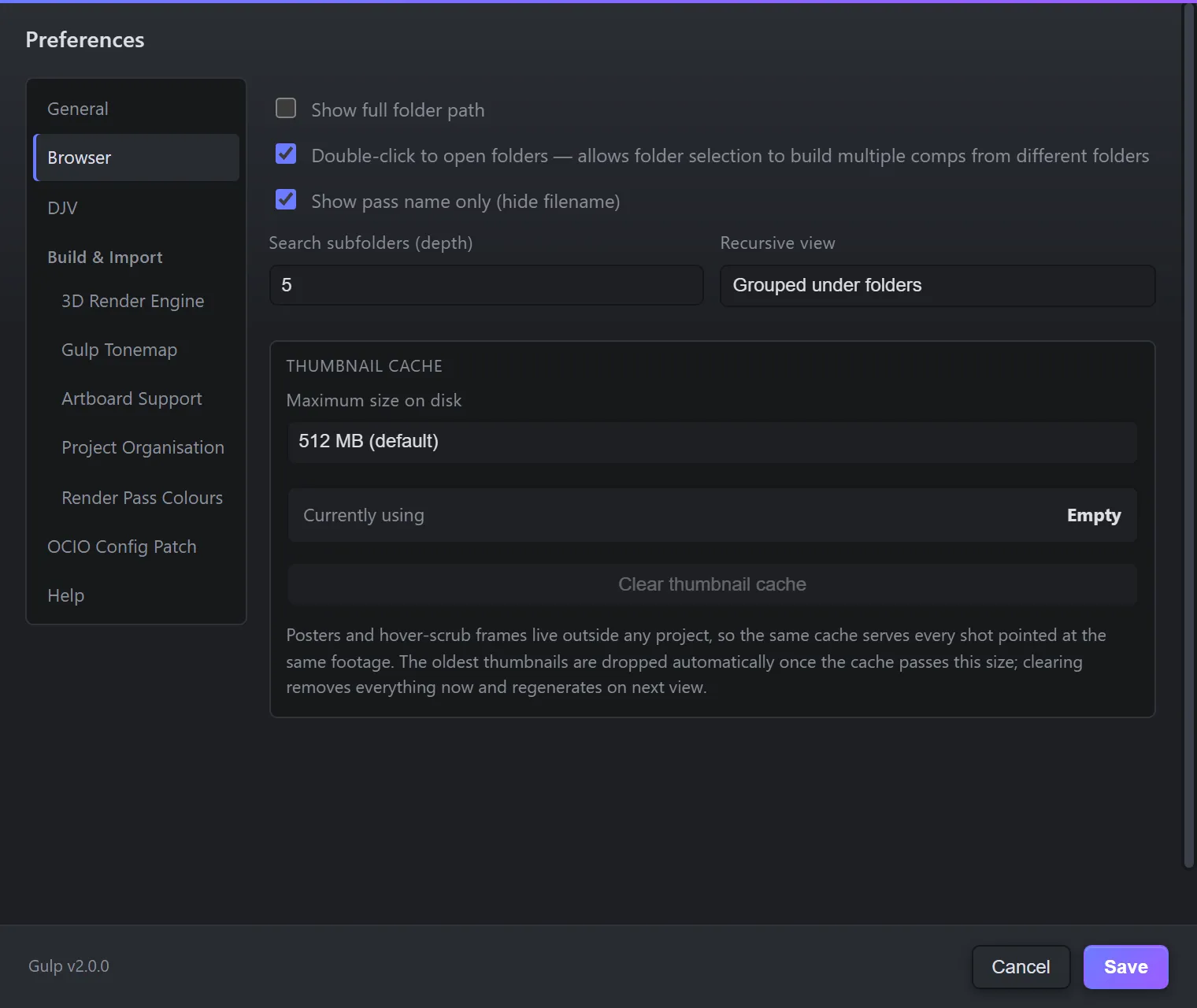
| Show full folder path | The path at the top of the panel shows every folder, not just the last few. |
| Double-click to open folders | Off, one click opens a folder. On, one click selects it and a double-click opens it — so you can select several folders and build a comp from each. Full version. |
| Show pass name only (hide filename) | Rows read as their pass name (Beauty, Diffuse…) rather than the file name. The same switch as the pass-name toggle in the panel. |
| Search subfolders (depth) | How many levels of subfolders Gulp lists below the current folder. 2 by default; 0 turns it off. |
| Recursive view | How subfolder contents are laid out: Grouped under folders (a header per folder, the default), Flat — label subfolder, or Sequences only. |
Thumbnail cache
Section titled “Thumbnail cache”Thumbnails and hover-scrub frames are kept on disk, outside any project, so the same cache serves every project that uses the same footage.
| Option | What it does |
|---|---|
| Maximum size on disk | 256 MB, 512 MB (default), 1 GB, 2 GB or No cap. The oldest thumbnails are dropped once the cache passes this size. |
| Currently using | How much is on disk now, and across how many thumbnails. |
| Clear thumbnail cache | Removes everything. Thumbnails are made again the next time you see them. |
DJV is a free, open-source review player that plays EXR, DPX and ProRes at full speed. When Gulp can find it, media rows get an Open in DJV item on the right-click menu. Gulp only launches DJV; nothing is bundled.
- Detect automatically looks for DJV in the usual places.
- Locate… lets you point at it yourself.
Build & Import
Section titled “Build & Import”3D Render Engine
Section titled “3D Render Engine”| Option | What it does |
|---|---|
| Assume this renderer | Used only when a shot’s own files do not say which renderer made them. A file that carries renderer information always wins, and Gulp shows what it read. |
| Check renders for scene-linear values when the Build dialog opens | Reads up to five beauty frames looking for values above 1.0, and advises on Gulp Tonemap in the Build dialog. Switch it off if your footage is on slow or network storage. |
Gulp Tonemap
Section titled “Gulp Tonemap”Full version.
| Option | What it does |
|---|---|
| Add Gulp Tonemap on build | Ticks Add Gulp Tonemap in the Build dialog by default. |
| Default tone curve | The curve used when Gulp cannot match the render: ACES 1.0 SDR, ACES 2.0 SDR, ACES Filmic (fast), AgX, AgX Punchy, PBR Neutral, Reinhard, Reinhard Extended, Hable or None. |
When a render has a Redshift Main beside its Beauty AOV, Gulp matches the tonemap to the render’s own look instead. See Tonemap and Light Mixer.
Artboard Support
Section titled “Artboard Support”| Option | What it does |
|---|---|
| Collapse groups (no precomps) | When Gulp builds a comp per Photoshop artboard, each group’s layers go straight into the comp instead of a precomp. A group with a mask, layer style, blend mode or transform is kept nested either way. |
| Retain layer sizes | When a Photoshop document is built into a composition, each layer keeps its own size. Off, every layer gets the whole canvas. |
Project Organisation
Section titled “Project Organisation”Where Build and Import file each kind of media in the Project panel: Sequences, Movies, MOV, MP4, Stills, Audio, Illustrator, Photoshop, PDF and Misc.
MOV and MP4 narrow Movies; Illustrator, Photoshop and PDF narrow Stills. Give two rows the same name and they share one folder — set Photoshop to “Stills” and PSDs are filed with the flat images. Render passes always go in the shot’s AOV folder; this only organises everything else.
Render Pass Colours
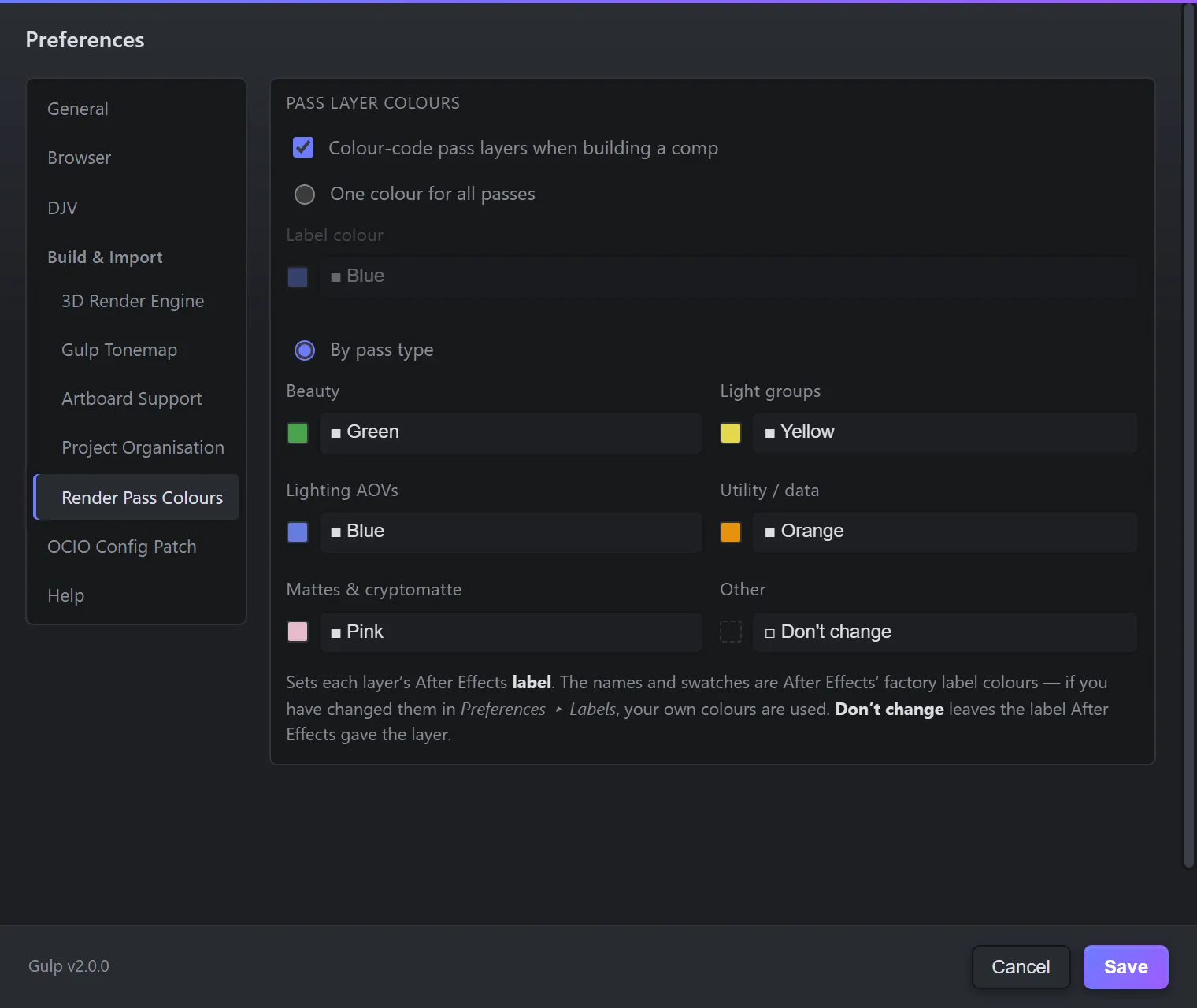
Section titled “Render Pass Colours”When Gulp builds a comp, it sets each pass layer’s After Effects label colour.
| Option | What it does |
|---|---|
| Colour-code pass layers when building a comp | On by default. Off, layers keep the labels After Effects gives them. |
| One colour for all passes | Every pass layer gets the same label. |
| By pass type | A label each for Beauty, Light groups, Lighting AOVs, Utility / data, Mattes & cryptomatte and Other. Don’t change leaves that type alone. |
The default is beauty green, light groups yellow, lighting blue, utility orange and mattes pink. The swatches use After Effects’ label colours — if you have changed them in After Effects’ Preferences ▸ Labels, your colours are used.
OCIO Config Patch
Section titled “OCIO Config Patch”Shows whether each of Adobe’s OCIO configs is patched or original, and lets you patch or undo.
- Not patched: Set EXRs to import as ACEScg, with a table of what each format will import as.
- Patched: when it was done, which config, the same table, and Undo — restore the original config.
Restart After Effects after patching or undoing. See Colour settings.
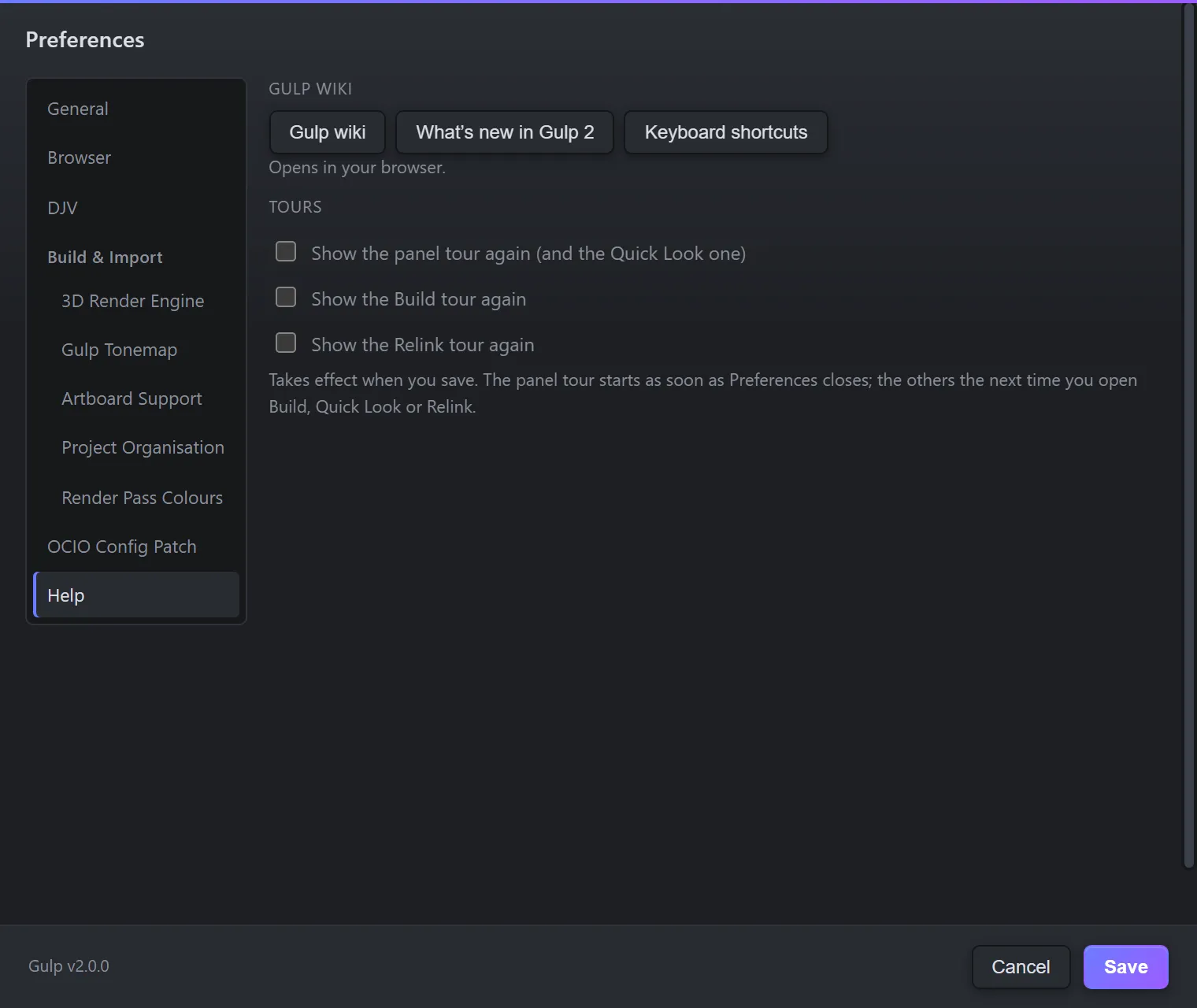
Gulp wiki, What’s new in Gulp 2 and Keyboard shortcuts open these pages in your browser.
Under Tours, tick any you want to see again:
- Show the panel tour again (and the Quick Look one) — the panel tour starts as soon as Preferences closes.
- Show the Build tour again — the next time you open Build.
- Show the Relink tour again — the next time you open the Relinker.
They take effect when you press Save.